






| |||||
|---|---|---|---|---|---|
|
|
|
|
|
|
|
How to configure VPN access between Draytek Vigor Routers and Cisco PIX 501 |
ScopeThis technote refers to some of the more advanced configuration possible with the Draytek Vigor range, but the principles can also be used on simpler configurations. 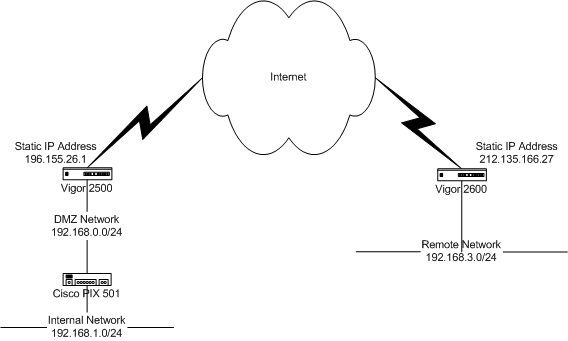 The network diagram above represents the overall configuration described by this technote. As always when creating VPN connections it is very important to ensure that there is no overlap in the IP address ranges used. To anyone who understand IP address allocation, this diagram might initially seem wrong, since a reserved network range is being published outside the Cisco PIX system. This has been done because in this specific case the ISP had only issued one IP Address. The external Vigor 2500, is being used to provide a bridge between the ethernet and ADSL networks as well as providing port forwarding and IPSEC passthrou.
The main advantage of this configuration is that is provides a true DMZ network, making it possible to have Internet facing servers on a separate distinct network from the internal trusted systems. |
SolutionIn this specific configuration the Vigor 2500, has been configure and tested for Internet access and has had the Cisco PIX box defined as it's DMZ host. 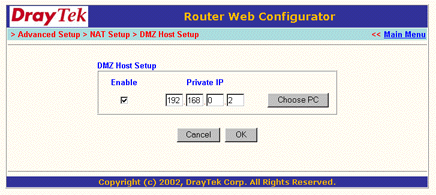 The internal IP address is 192.168.0.1, DHCP server has been turned off, as have all of the > Advanced Setup> Remote Access Control Setup> Remote Access Control Setup settings. 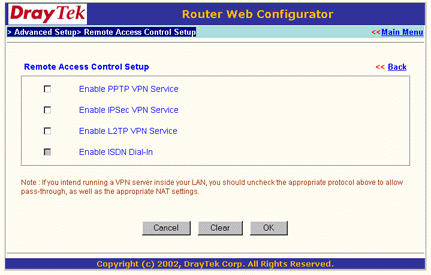 The Cisco PIX 501 has been configured with an IP address of 192.168.0.2 and a default gateway of 192.168.0.1, click here for a full configuration list.
The Cisco PIX in question was configured using the Cisco PDM web tool, but the lines below are the lines that specifially relate to the VPN tunnel we are creating.
access-list inside_nat0_outbound permit ip
Internal_network 255.255.255.0 Remote_Network 255.255.255.0 All that remains now to to configure the remote Draytek Vigor 2600 with the information allowing it to create and maintain the remote end of the VPN tunnel. First from the main menu choose VPN and Remote Access Setup > LAN-to-LAN Dialer Profile Setup. Select a free VPN configuration index, you should then be presented with the following screen. 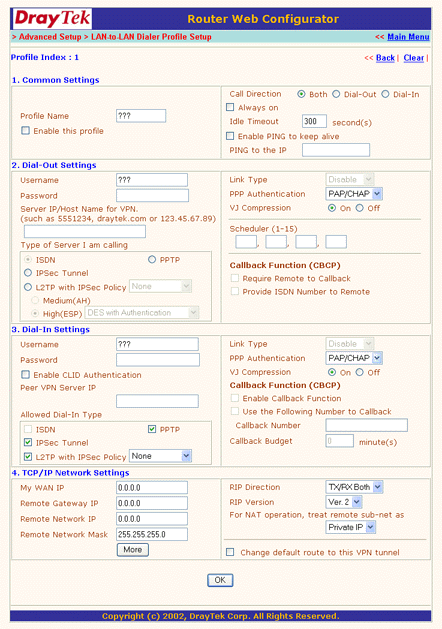 Start by enabling the profile and giving it a name. Next define the peer gateway address; in our example this is the external address of the Vigor 2500. Check the IPSec Tunnel option and choose the level of encryption required; in our example 3DES with authentication. Finally, define the IP address range of the network you wish to connect to; in our example 192.168.1.0 / 255.255.255.0 (the internal network). The VPN configuration screen should now look like this. 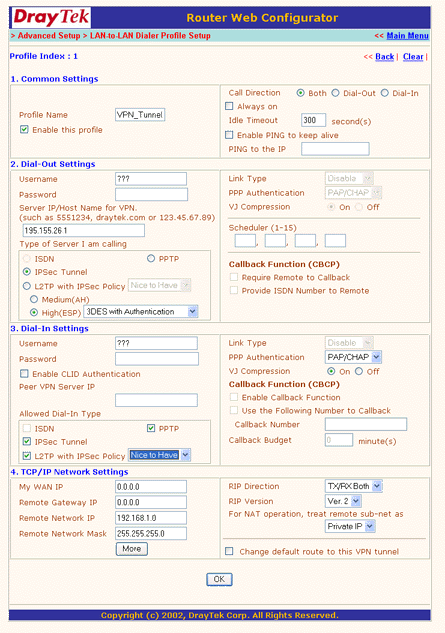 All that remaing to do now is to configure the preshares secret used for IKE Authenication. Go to VPN and Remote Access Setup > VPN IKE / IPSec Setup and define the IKE keys used for inbound and outbound authentication as well as the inbound IPSec security method, remember this should match the information configured into the Cisco PIX box. 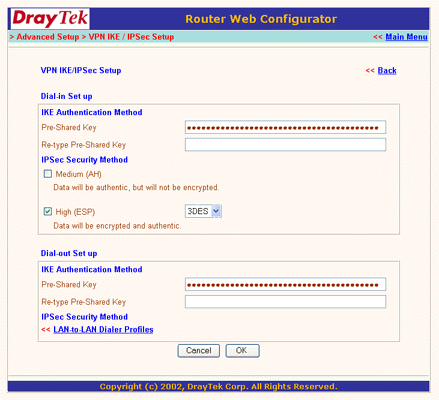 The connection can either be initiated manually via the System Management > VPN Connection Management screen, or else the tunnel will be brought up automatically when either end of the tunnel detects traffic destined for this peer. |
| services | products | about us | contact us | in the news |